Updating Individual Records (self-serve)
Throughout the review process, you may need to update assignments for an individual record(s).
Department administrators can change the Administrative Contact, and users with Edit and/or Read access to both Funding Proposals and Awards that are in any State.
From the Funding Proposal or Award workspace:
- Click Manage Access
- Select a new user in Q1 Select Administrative contact to reassign the record
- Click OK when completed
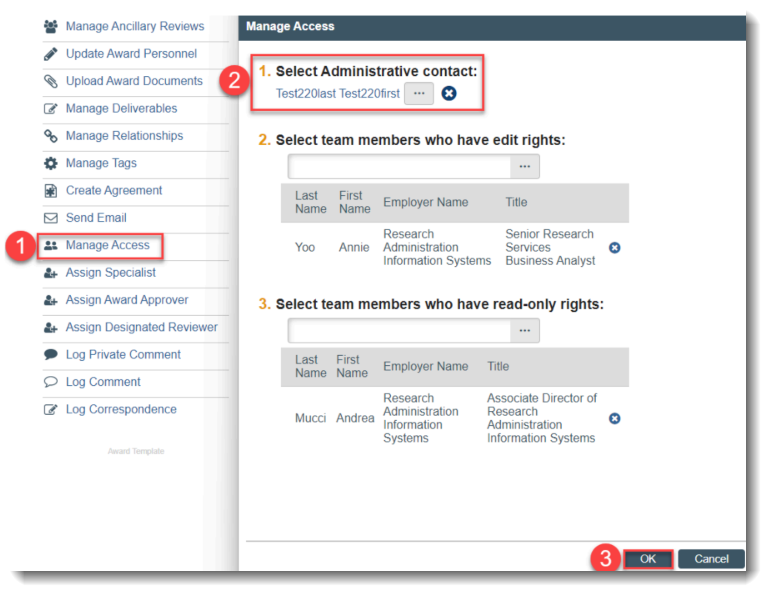
Your access roles and the record’s workflow state will determine the activity’s availability to you within the workspace to make these changes.
Updating Administrative Assignments on Multiple Records – Mass Update
- Mass update activities can update administrative assignments (Contact Administrator and/or users with Edit/Read access to records) on multiple projects in a single run. This is much more efficient than methods that affect only one project at a time
- Mass run updates must be requested via a Deskpro ticket and are processed by the Research Administration Information Systems team.
- They are requested when the number of records to be updated is substantial (20 or more records)
- Mass run updates must be requested via a Deskpro ticket and are processed by the Research Administration Information Systems team.
*** IMPORTANT NOTE: Mass Updates will update ALL Funding Proposal or Award records for a given cost center***
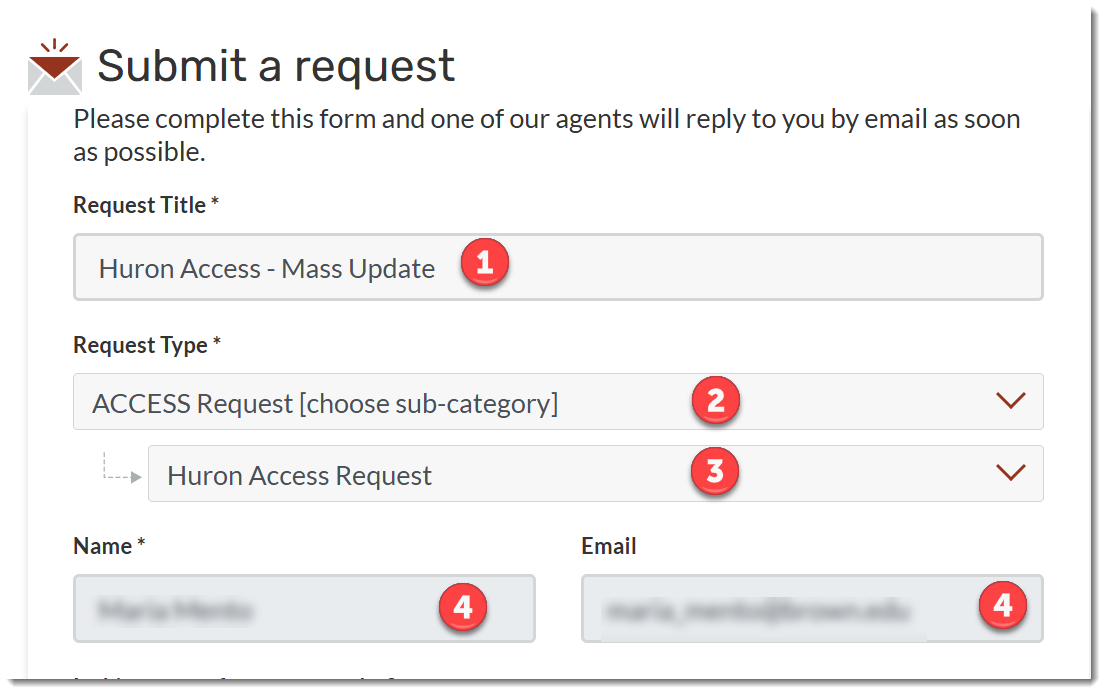
To create a Mass Run Deskpro ticket/request, log in to the OIT Service Center using your Brown credentials. Complete the request form as follows:
- Request Title: Enter: Huron Access – Mass Update
- Request Type: Select: Access Request
- Request Sub Type: Select: Huron Access Request
- Name/Email: These fields will pre-populate with the name/email of the person creating the ticket
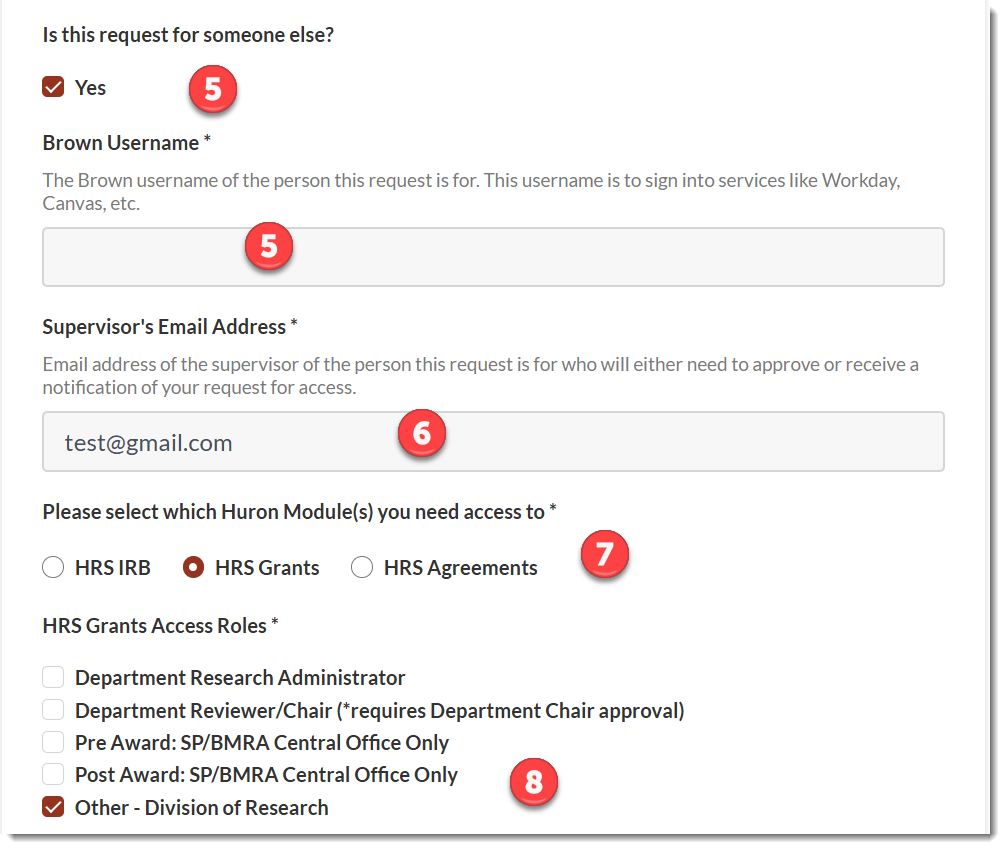
- Is this request for someone else? Select Yes if you are creating on behalf of another user
- Brown Username – Enter: Name of the person you are creating on behalf of
- Supervisor’s Email Address – Enter: Email address of the user’s supervisor
- Please select which Huron Module(s) you need access to: Select: HRS Grants
- HRS Grant Access Roles – Select ‘Other – Division of Research’
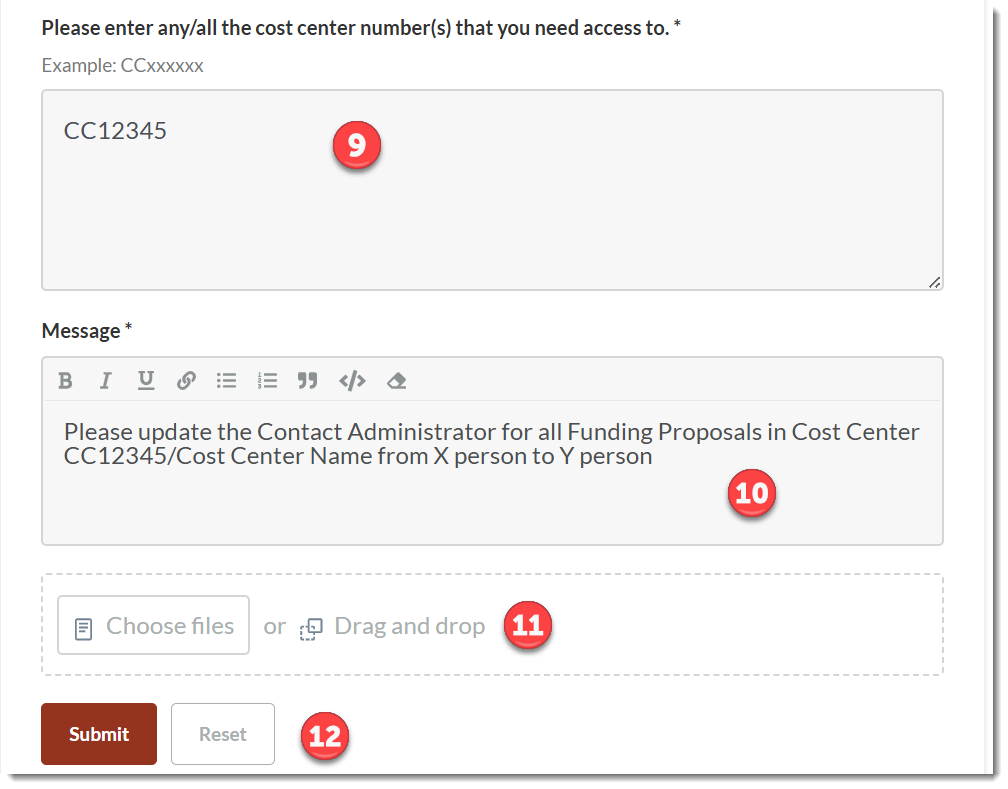
- Please enter any/all the cost center number(s) that you need access to – Enter the CC number and Department Name that you are requesting roles be updated via the Mass Update
- Note: Submit one ticket per cost center/department
- Message –
- Enter what role (Contact Administrator, Edit and/or Read) you want updated
- Enter the module name (Awards or Funding Proposals or both)
- Enter the name of user you want removed and the name of the user you want to be named in that role
- Add any attachments (not required)
- Submit
Note: Separate from above, please submit an OIT Service Center ticket when a user leaves Brown or their position changes and roles need to be removed.
Further job aids and Huron resources are available to the research community on the Huron training website.